Designing a context-aware AI assistant that lives inside every page of the Datagaps DataOps Suite — answering product questions, writing validated SQL and starting real work, without pulling data teams out of their flow.
At a glance
One assistant for a suite of hundreds of dataflows.
The challenge
Help lived outside the product.
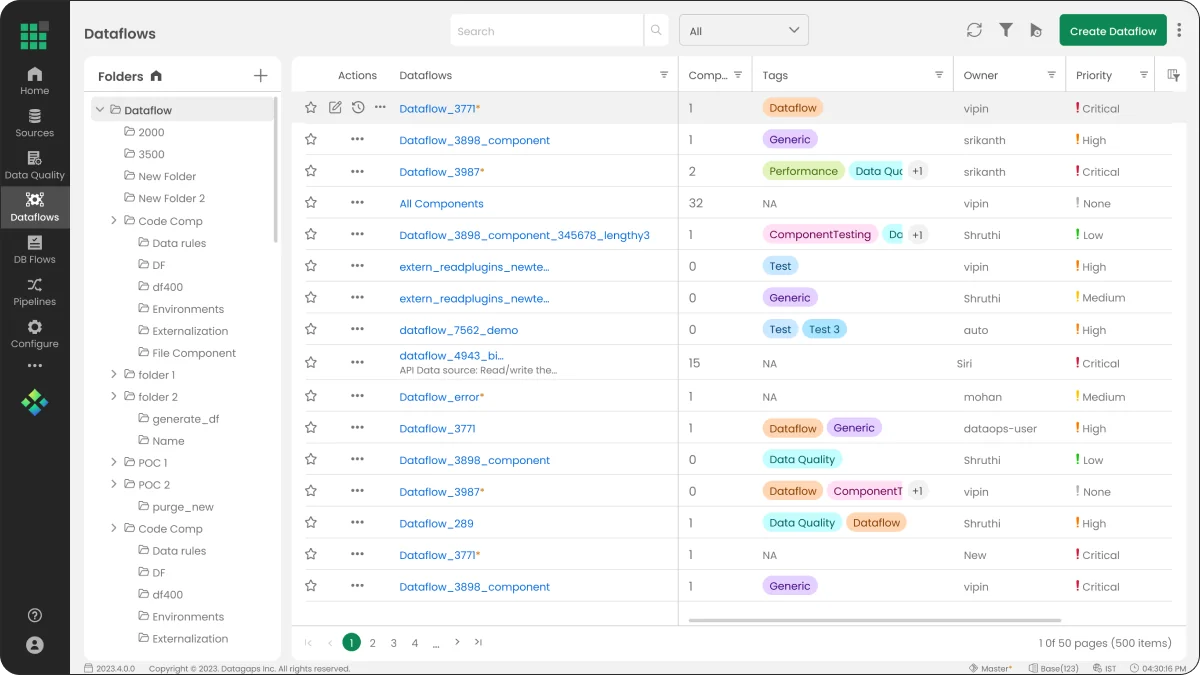
Power users manage hundreds of dataflows (one workspace holds 500 across 50 pages). Answers sat in docs, correct SQL depended on schema knowledge spread across people, and failures meant scanning run history page by page.
What I led
The experience, end to end.
As Lead UX/UI & Product Designer for the DataOps Suite, I owned the assistant from strategy to the last component state.
Set the model: one entry point, two specialised agents, three starter jobs
Defined the user groups, four design principles and the core flow
Designed for data engineers, QA analysts and workspace admins
Built a reusable kit in the existing product language
UX strategy, interaction design, UI, component states
Platform
Web · Enterprise SaaS · Desktop
Product
Dataflows, Data Quality, Pipelines
Client
Datagaps — DataOps Suite
Year
2026
Users
Data engineers, QA analysts, workspace admins
Delivered
25+ screens and states
From question to validated result in one panel.
01 Context
A powerful platform with a steep learning curve.
The DataOps Suite helps data teams test, validate and monitor data across sources, dataflows and pipelines. Power users manage hundreds of dataflows — the workspace below holds 500 across 50 pages — built from drag-and-drop components, SQL and rules. Getting work done meant juggling documentation, schema knowledge and run history in separate places.
Before — the Dataflows workspace: dense and capable, but silent when you get stuck.
02 The problem
Where data teams were losing time.
P1
Knowledge lives outside the product
How-to answers sit in docs and help articles. Users leave the canvas, search, and come back having lost their context.
P2
SQL needs tribal schema knowledge
A correct query depends on knowing the right datasource, schema, tables, keys and date columns — knowledge spread across people.
P3
Failures are hard to trace
Understanding why dataflows failed means scanning run history across many pages of items, one by one.
Goals
Answer product questions inside the product, so users keep their context.
Write SQL that users can verify before they run it.
Start real work, not just return text.
Do it from any page — Dataflows, Data Quality, Pipelines — without pulling data teams out of their flow.
How might we
…give data engineers and QA analysts an assistant that understands where they are, answers from trusted sources, writes SQL they can verify — and takes action, without leaving the screen?
03 My role
Lead UX/UI & Product Designer, end to end.
I led the assistant's experience from strategy to the last component state. I decided how it enters the product, how it talks, how it shows its work and how it fails gracefully, and designed it for the three groups who use the suite every day: data engineers, QA analysts and workspace admins.
01
UX strategy
I set the model: one entry point across every module, two specialised agents, and starter prompts mapped to the top jobs.
02
Interaction design
The core flow from question to validated result, clarifying choices, live reasoning, and side panel to full screen.
03
UI
Built in the existing DataOps Suite language (Poppins and Inter, the Datagaps green accent).
04
Component states
Generating, thinking, not configured, history and delete. I turned them into a reusable kit so new agents can plug in without new UI.
04 Process
From pain points to a reusable kit.
01 · Discover
Find the top jobs
Map where data teams were losing time: docs outside the product, schema knowledge, failure tracing.
02 · Define
Set the rules
Three users, four design principles and one core flow from question to validated result.
03 · Design
Design every part
Entry point, grounded answers, clarifying SQL, verifiable output, full screen, history, actions and empty states.
04 · Systemise
Build the kit
Twelve reusable components in the existing product language, ready for new agents.
05 Research
Three jobs we kept hearing about.
Looking at how power users worked across hundreds of dataflows, the same three jobs came up again and again. Each one became a starter prompt, so the assistant opens on the work people actually need to do.
Job
What got in the way
Starter prompt
Learn how a feature works
How-to answers sit in docs and help articles, outside the canvas.
Summarize dataflow creation process
Write a correct query
The right datasource, schema, tables, keys and date columns are spread across people.
Generate SQL Query
Understand why runs failed
Run history is scanned across many pages of items, one by one.
Analyze recent dataflow failures
06 Who it's for
Three people, one assistant.
Data Engineer
Builds dataflows and pipelines
Needs correct SQL fast, and wants to see how it was derived before running it.
QA / Data Quality Analyst
Writes rules, comparisons and validations
Needs quick, reliable answers about how product features work — in the moment.
Workspace Admin
Configures the suite for the team
Needs a clear path to connect an AI provider and govern how the assistant is used.
07 Design principles
Four rules that shaped every screen.
01
Stay in context
A side panel opens over any page, so users never lose their place. It expands to full screen when a task needs room.
02
Ask before assuming
When a request is ambiguous — which datasource, which schema — the assistant asks with one-tap choices instead of guessing.
03
Show the work
Live reasoning steps, detected entities, optimisation notes and a confidence score make every answer inspectable.
04
Specialised agents
A Database Agent and a Document Agent scope each conversation, so answers come from the right source.
Core flow
From question to validated result in one panel.
01 Open from the global nav→02 Pick a prompt or agent→03 Clarify intent→04 Watch the reasoning→05 Review validated output→06 Act or follow up
Structure
One entry point, two agents, every module.
Global AI is one entry point in the left navigation that opens on top of any module — Dataflows, Data Quality, Pipelines. Inside, an agent switcher in the composer scopes the conversation: the Database Agent for querying data, the Document Agent for files and documents. The thread lives in a side panel that can expand to full screen, with chat history alongside.
08 Key decisions
The calls that shaped the assistant.
Before
Getting work done meant juggling documentation, schema knowledge and run history in separate places.
After
One entry point in the left navigation that opens on top of any module, answers from trusted sources and starts real work.
01
A side panel, not a separate page
The panel opens over the current page, so users never lose their place. Long answers and SQL reviews outgrow a 400px panel, so one click expands it to full screen — same thread, same state.
02
Clarify instead of guess
One tap to confirm a datasource costs far less than debugging a wrong query later.
03
Show reasoning, not just results
Reasoning steps, confidence and a visible disclaimer did more to make answers usable than speed alone.
04
Two specialised agents
A Database Agent and a Document Agent scope each conversation, so answers come from the right source.
05
Answers that lead to actions
The assistant does not stop at text. It can build a Dataflow, narrating each step so users stay in control.
09 The solution
An assistant that lives where the work happens.
Global AI is one entry point in the left navigation that opens on top of any module — Dataflows, Data Quality, Pipelines. Here is how each part of the experience was designed.
9.1 — Entry point
One entry point, everywhere
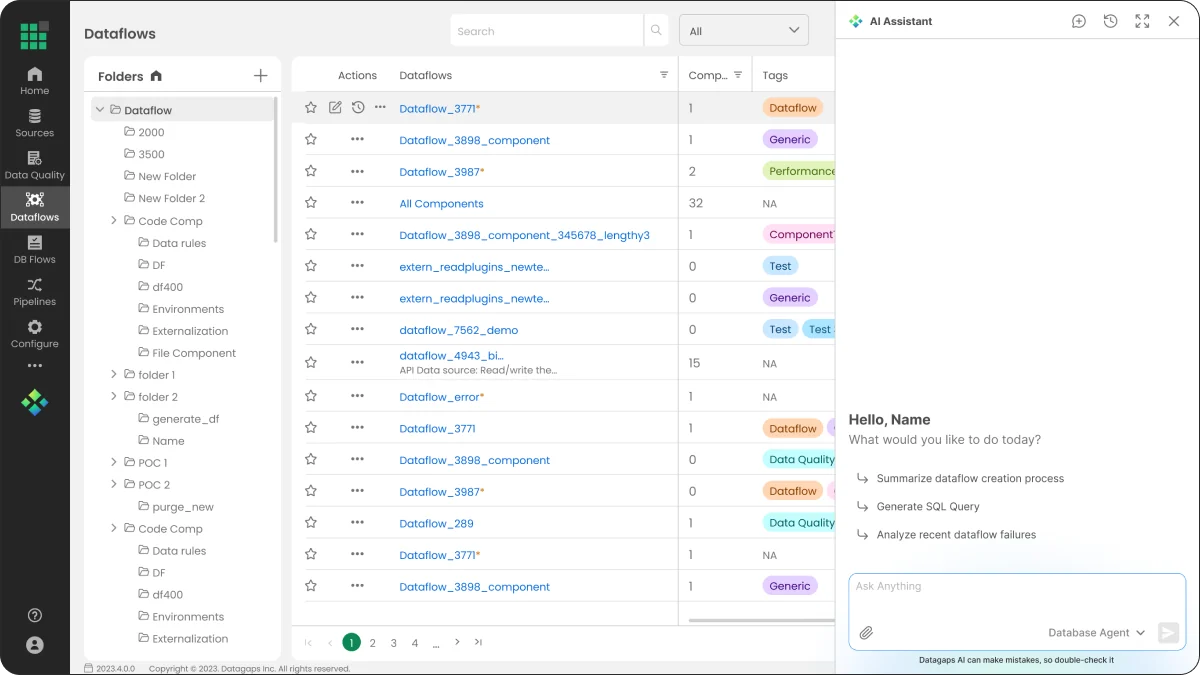
The AI mark sits at the bottom of the global navigation and opens a side panel over the current page. A personal greeting and three starter prompts map directly to the top jobs we heard about.
Starter prompts: summarise a process, generate SQL, analyse recent failures
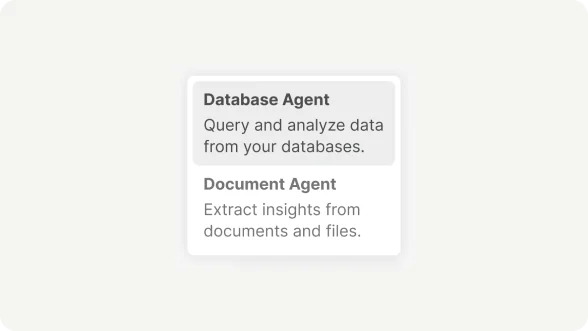
Agent switcher in the composer — Database Agent or Document Agent
“Datagaps AI can make mistakes” stays visible beneath every input
9.2 — Product answers
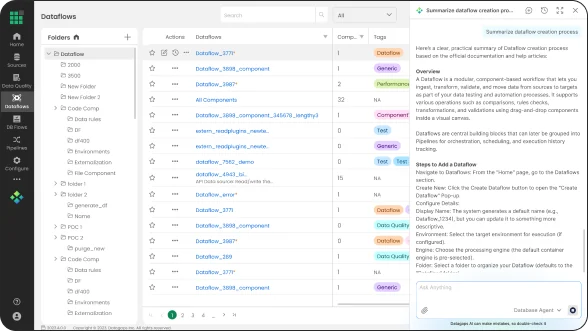
Answers grounded in the docs
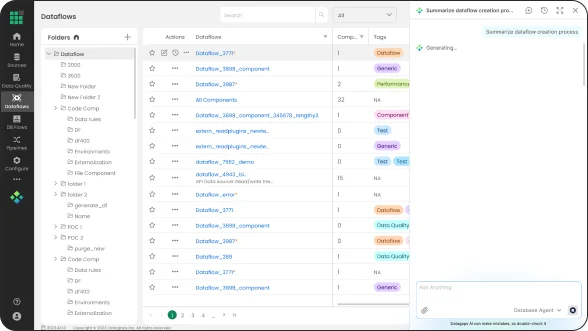
Product questions return structured summaries drawn from official documentation and help articles — with clear Overview and Steps sections, embedded tutorial videos, and an offer to go deeper.
Streaming “Generating…” state while the answer is prepared
Response actions: read aloud, copy, helpful, not helpful, more
Long answers stay readable with headings and numbered steps
9.3 — Database Agent
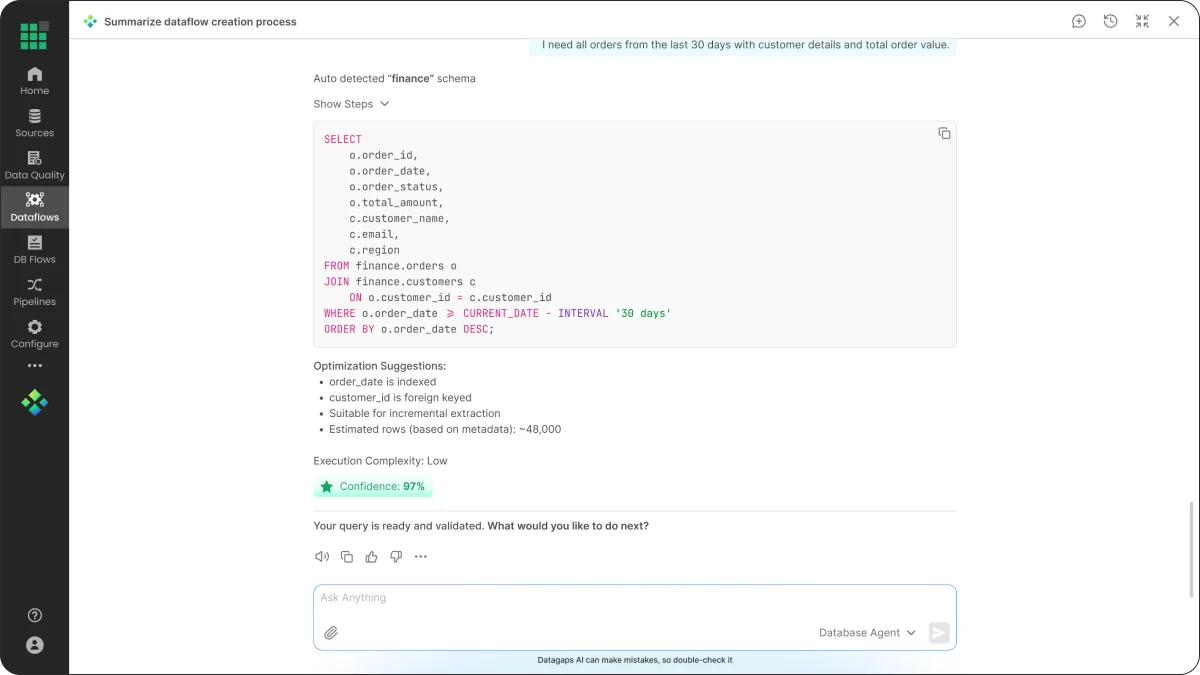
SQL that asks before it writes
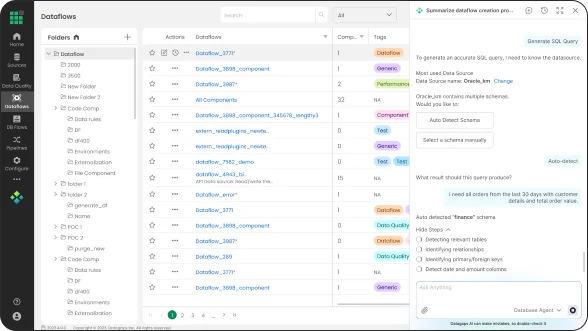
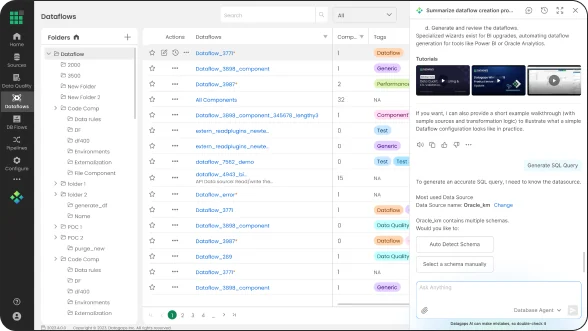
Instead of guessing, the Database Agent proposes the most-used datasource, asks how to handle multiple schemas, then asks what result the query should produce. While it works, each step is shown live.
Suggested datasource (Oracle_km) with a one-click “Change”
Auto Detect Schema vs. Select a schema manually
Live steps: relevant tables → relationships → primary/foreign keys → date & amount columns
9.4 — Verification
Output you can verify
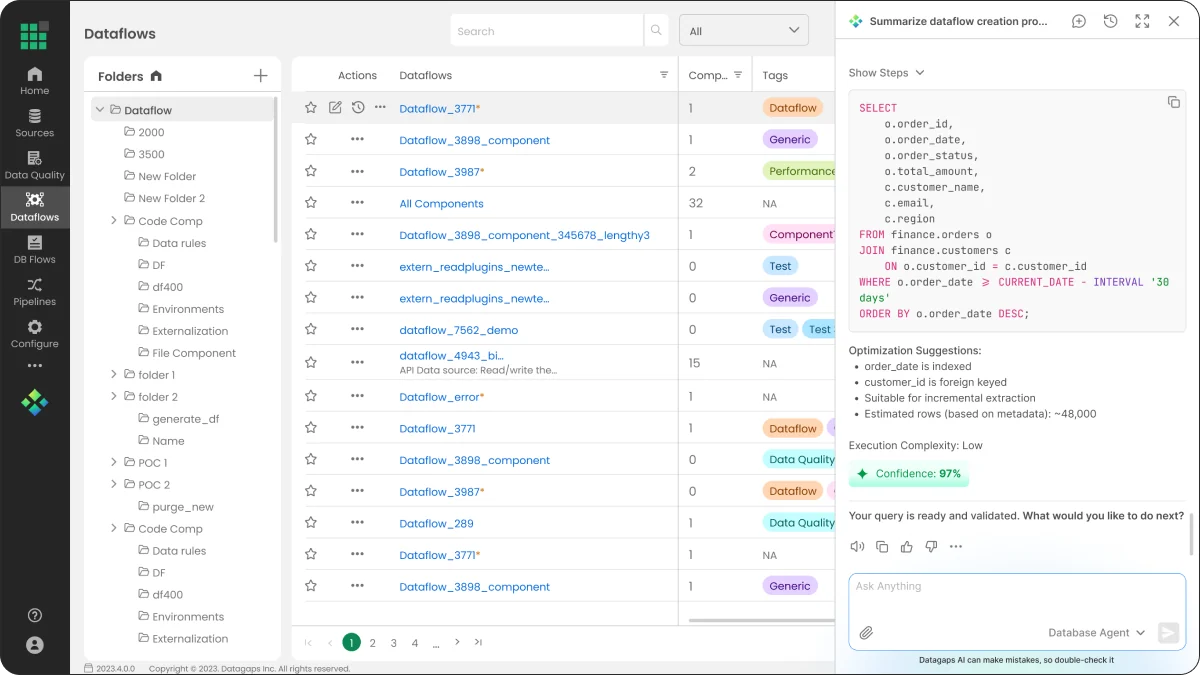
The final query arrives in a syntax-highlighted, copyable code block — followed by the reasoning a reviewer would ask for, and a clear prompt for what to do next.
“Your query is ready and validated. What would you like to do next?”
9.5 — Full screen
Room to think
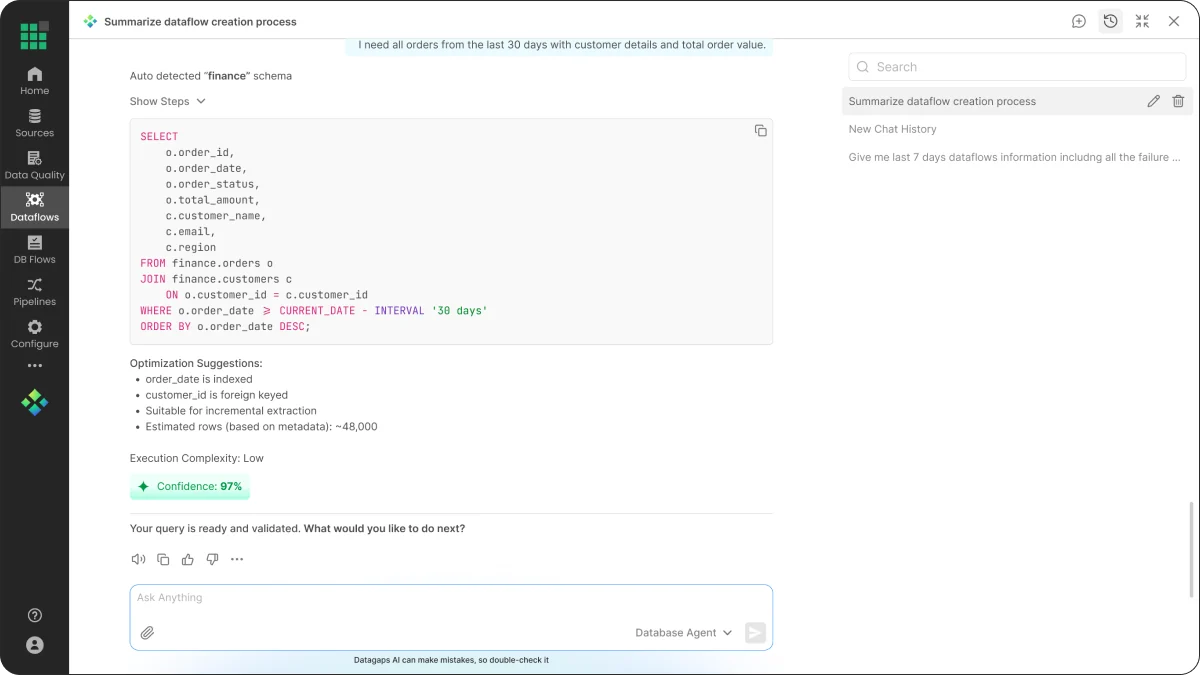
Long answers and SQL reviews outgrow a 400px panel. One click expands the conversation to full screen — same thread, same state — and collapses back to the side bar when the user returns to building.
Header controls: new chat, history, full screen / side bar, close
Composer and agent switcher stay anchored at the bottom
Chat history opens alongside the thread in full-screen mode
9.6 — History
Conversations worth keeping
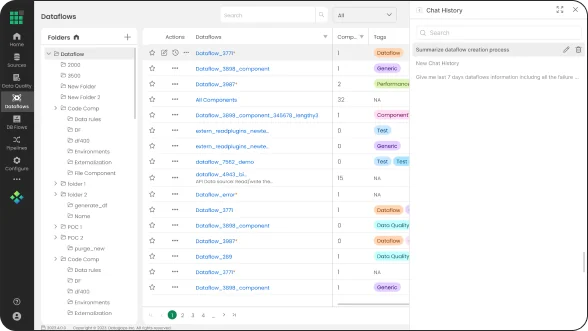
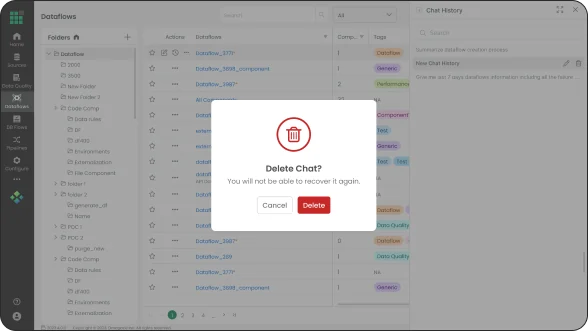
Useful threads become reference material, so history is searchable and manageable in place — with a guarded, explicit confirmation before anything is deleted.
Searchable chat history with inline rename and delete on hover
Destructive confirmation: “Delete chat? You will not be able to recover it again.”
9.7 — Actions
From answers to actions
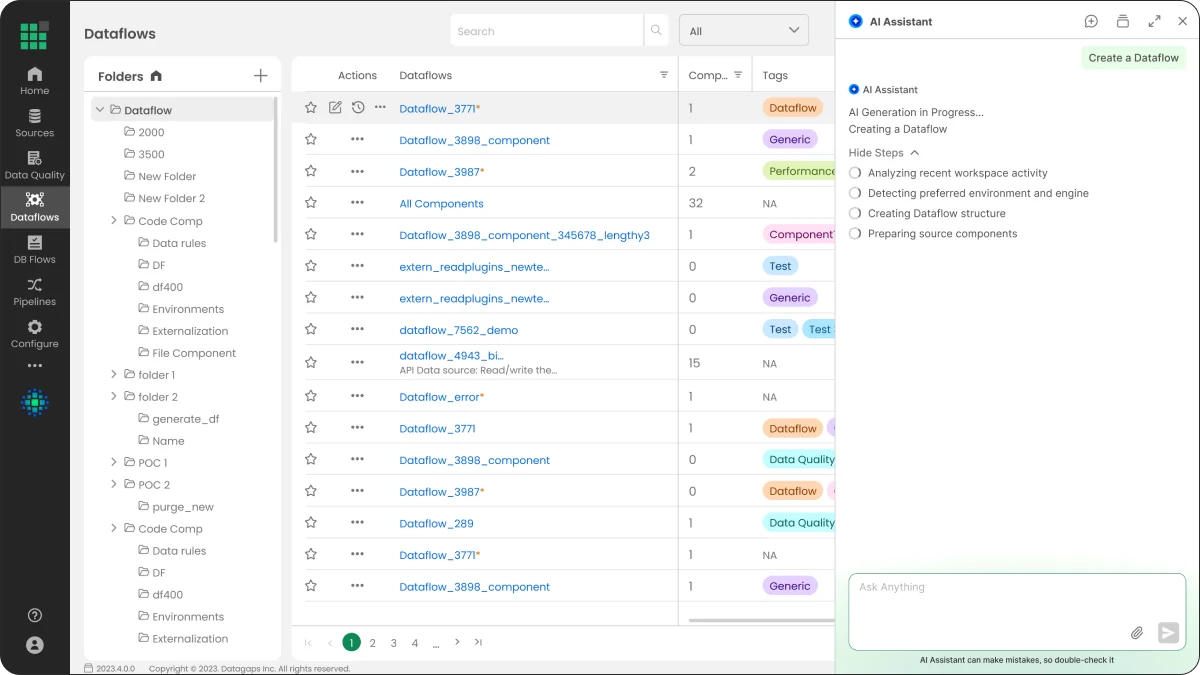
The assistant does not stop at text. Asked to “Create a Dataflow”, it analyses recent workspace activity, detects the preferred environment and engine, then builds the structure and source components — narrating each step so users stay in control.
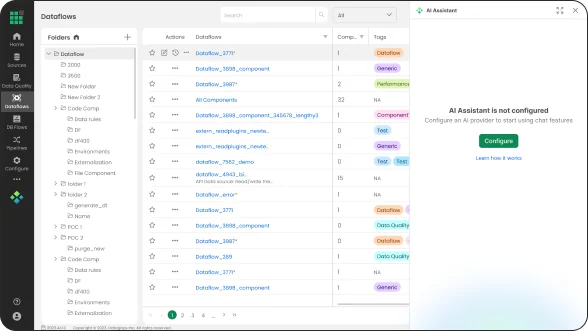
The unglamorous states make a feature feel finished. Before an AI provider is connected, the panel explains what is missing and gives admins a direct path to configure it.
Not-configured state with “Configure” and “Learn how it works”
Agent menu: Database Agent for querying data, Document Agent for files and documents
Panel moments
The small moments in between.
Generating — immediate feedback the request was understood.Answer — structured summary sourced from help articles.Clarify — datasource and schema choices as one-tap buttons.Reason — progress steps with detected entities and join keys.History — search, rename and delete without leaving the panel.Delete — a clear, irreversible-action confirmation.Not configured — a clear admin path instead of a dead end.Agent switcher — scoping each conversation to the right source.
Building blocks
A small kit, designed to scale with new agents.
Each piece was built as a reusable component in the existing DataOps Suite language (Poppins and Inter, the Datagaps green accent) so new agents can plug in without new UI.
Panel header · New chat · History · Full screen · Side barComposer + agent switcherSuggested promptGenerating / Thinking loaderShow / hide reasoning stepsClarifying choice buttonsCode block with copyConfidence chipResponse actions rowChat history itemDelete confirmationNot-configured empty state
10 Validation
Built so every answer can be checked.
An AI answer is only useful if people can tell whether to trust it. Checking is designed into the flow itself, and every response carries a way to say whether it helped.
Inspect
Visible reasoning
Live steps, detected entities and join keys show how a query was derived before anyone runs it.
Judge
Confidence and complexity
Optimisation notes, execution complexity and a confidence chip sit right under the code block.
Feed back
Helpful / not helpful
Response actions on every answer, with “Datagaps AI can make mistakes” visible beneath every input.
“Your query is ready and validated. What would you like to do next?”
11 What we shipped
One assistant, designed end to end.
1
entry point across every module
2
specialised agents — Database & Document
3
starter jobs mapped to real pain points
25+
screens and states designed
12 Reflection
What I’d tell the next team building AI into a product.
01
Trust is a UX feature
Reasoning steps, confidence and a visible disclaimer did more to make answers usable than speed alone.
02
Clarify, don’t guess
One tap to confirm a datasource costs far less than debugging a wrong query later.
03
Design the whole lifecycle
Not-configured, generating, history and delete states are what make an AI feature feel like part of the product.
Next
A dedicated failure-analysis experience for “Analyze recent dataflow failures”, running generated SQL straight into a Dataflow component, and admin controls for AI providers and usage.